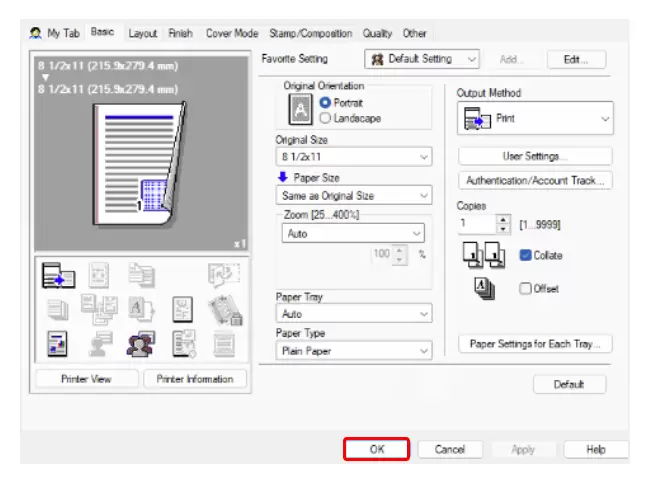
If your copier requires a username and password to copy or print, you will need to enter that password into the driver so that you are able to print. These steps will set your username and password into the drive by default so you do not need to enter them for every print.
NOTE: These instructions are for Konica Minolta Universal Print Driver, Version 3.9. However the procedure is the same for most KM drivers.
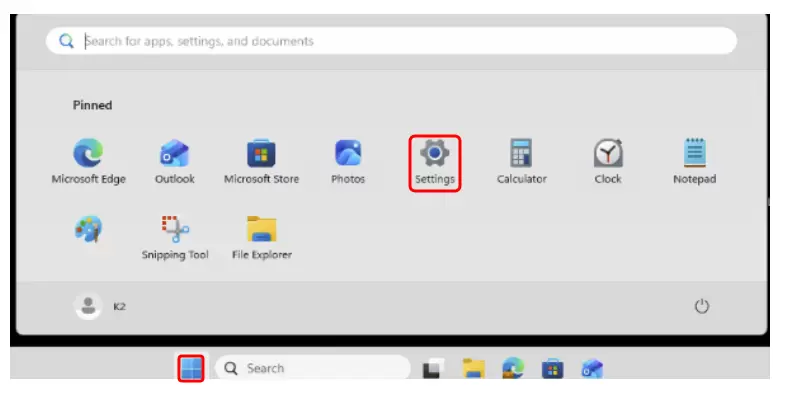
Step 1: Open settings
On your computer, click [start] and then [Settings]
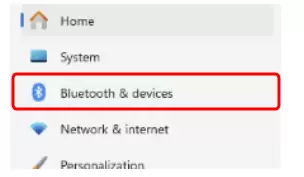
Step 2: Open bluetooth and device settings
Click [Bluetooth & devices]
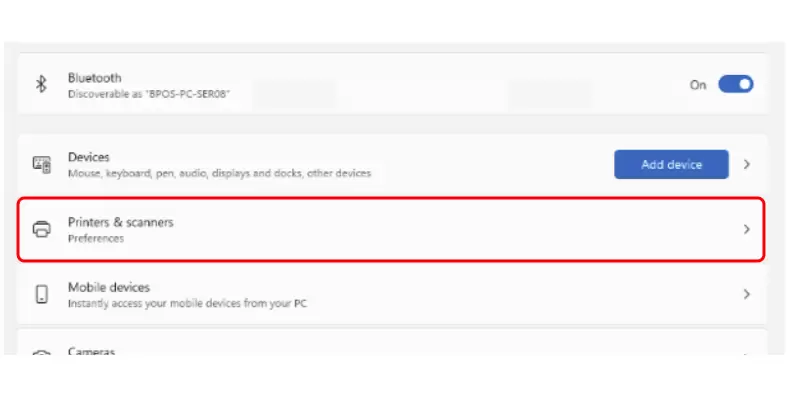
Step 3: Open printers and scanners
Click [Printers & Scanners]
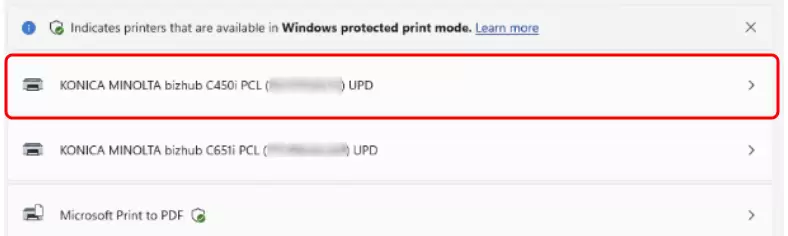
Step 4: Select your printer
From the list of printers, select the one that you need to enter the username/password for.
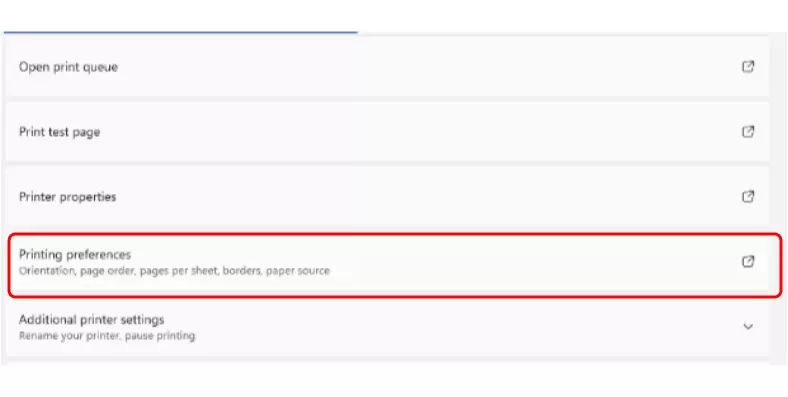
Step 5: Open the printers printing preferences
Click [Printing preferences]
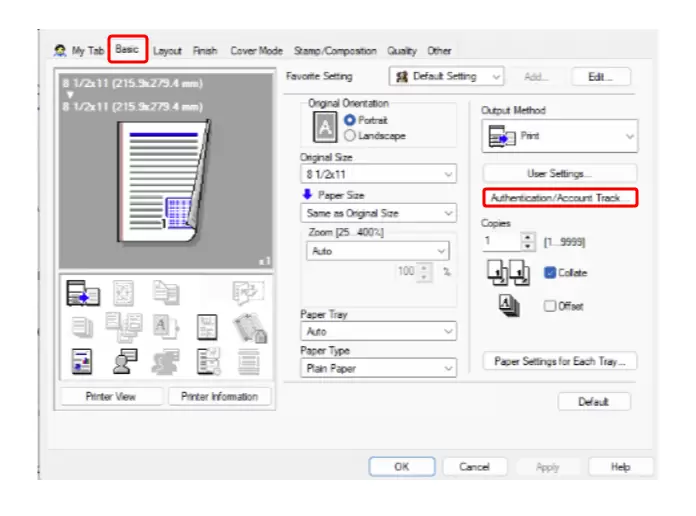
Step 6: Open the authentication/account track settings
Click [Basic] and then [Authentication/Account Track]
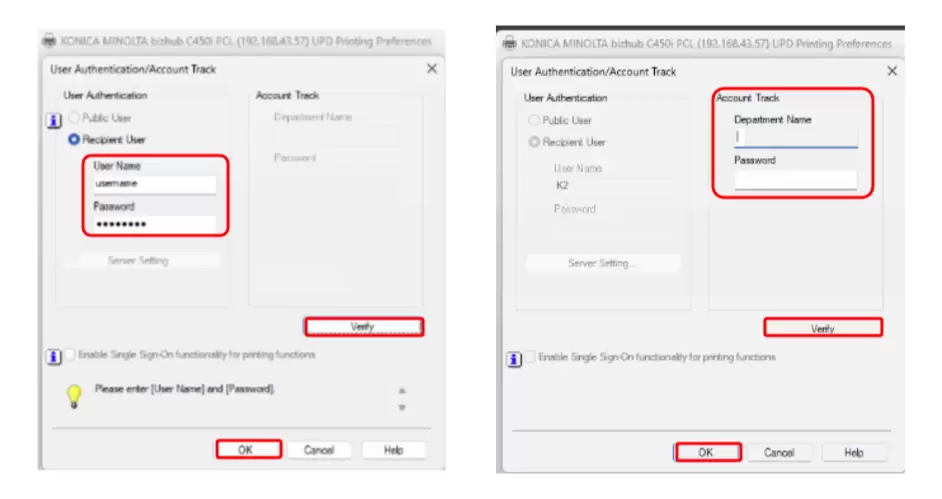
Step 7: Enter your credentials
Depending on how your copier is configured, you will enter your username/password under Authentication or Account track. Click [Verify] to confirm the credentials are correct then click [OK]
Note: For account track can be configured for password only. If you only use a password to log into the copier, then you can enter the password only.
Step 8: Click OK to finish the configuration
Click [OK]