Manitoba Time Change
Effective November 1, 2026, Manitoba will no longer observe seasonal time changes and will remain on the same time year-round. Devices configured to automatically adjust for Daylight Saving Time (DST) may require configuration changes to ensure the correct date and time are maintained. Follow the instructions below to update your device settings.
Before you begin
Before making any changes, verify the current date and time displayed on the device.
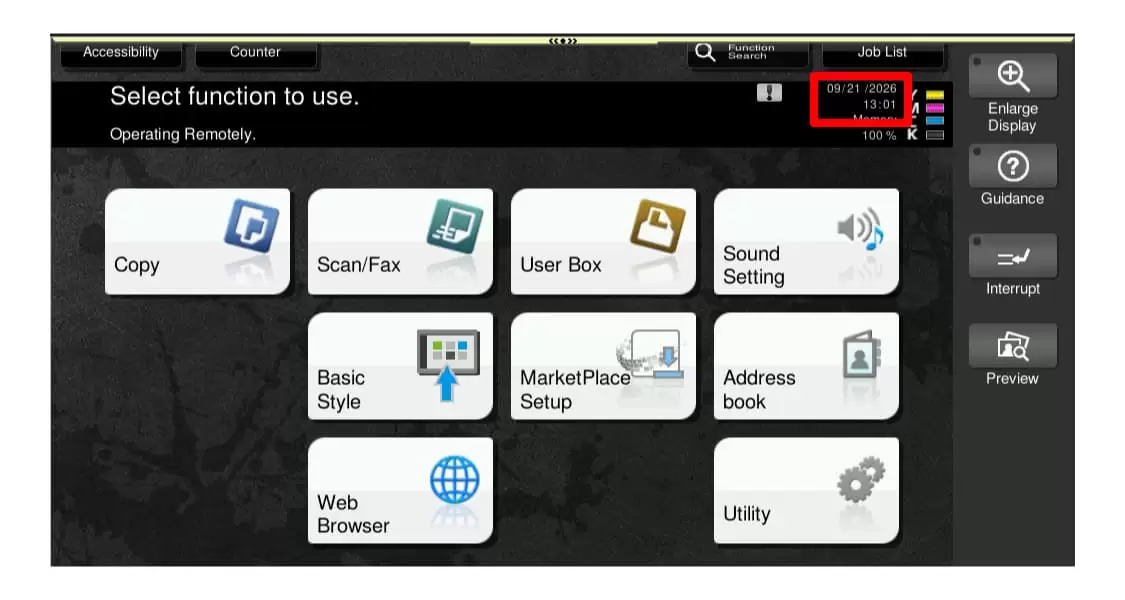
If the displayed time is correct:
Complete Configure Daylight Savings Time (DST) and no further action is required.
If the displayed time is incorrect:
Complete Configure Daylight Savings Time (DST), then follow either Manual Configuration or Automatic Time Synchronization (NTP) to correct the device time.
Admin Mode
You will need access to Admin Mode to change the date and time.
Step 1: Configure Daylight Savings Time (DST)
1. Enter Admin Mode
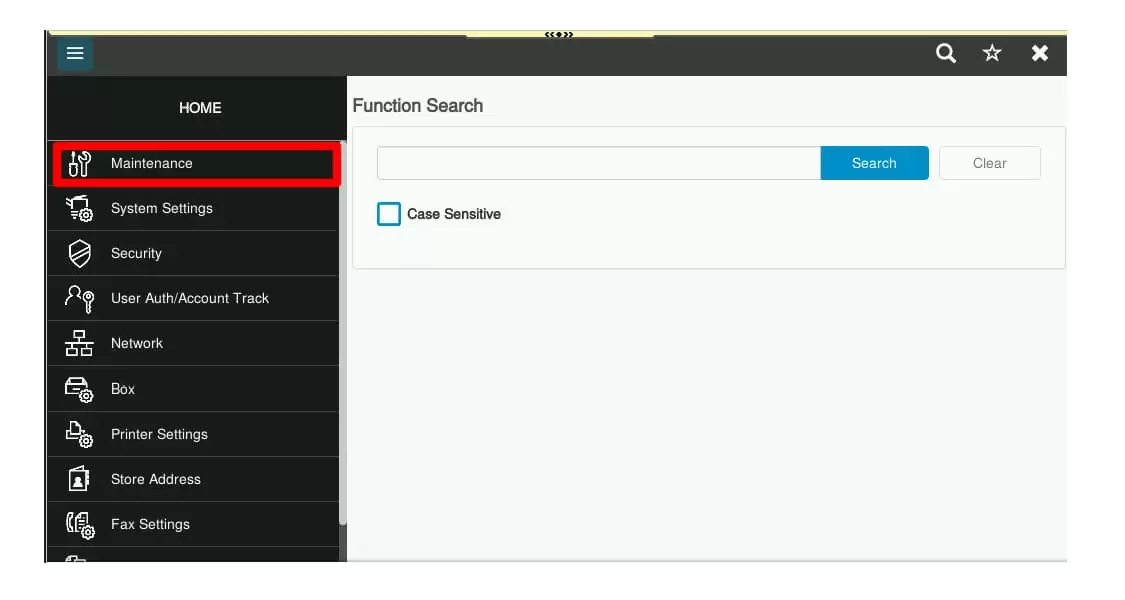
2. Touch [Maintenance]
3. Touch [Daylight Saving Time]
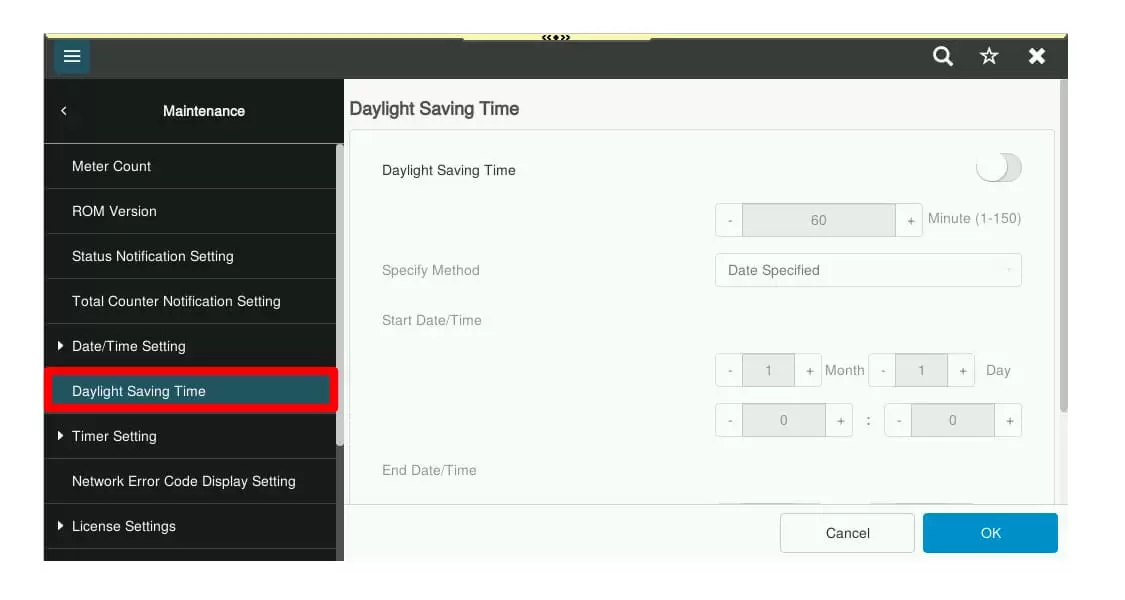
4. Ensure that Daylight Saving Time is toggled off (all fields should be grayed out) and touch [OK]
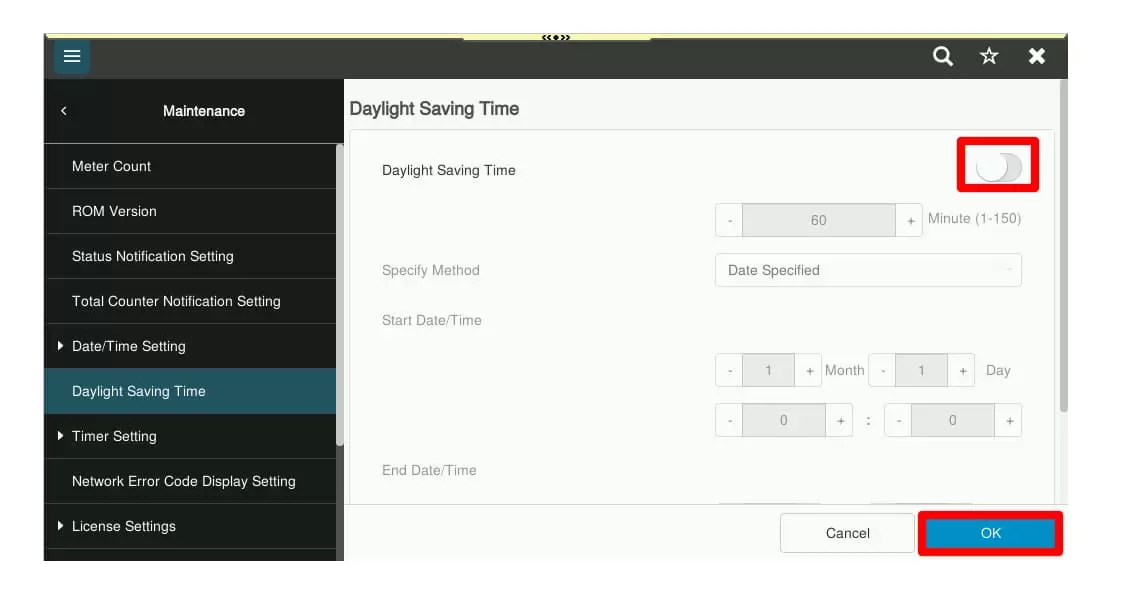
If your times are correct, you may stop here and return to the home screen (press reset). If your times are incorrect, continue to the next steps.
Important: Manitoba will remain on a time zone equivalent to UTC-5 year-round. If your device is currently configured for UTC-6, update the Time Zone setting to UTC-5 will help ensure accurate timekeeping. This can be set by following the instructions in the next section for “Manually set the time”.
Step 3: Set the time
If the displayed date or time is incorrect, it can be updated manually or synchronized automatically using an NTP server.
Use either of the following methods to maintain the device time. If you are unsure which method to use, proceed with Manual Configuration.
Access the time settings
1. Access Admin Mode
2. Select [Maintenance]
3. Touch [Date/Time Setting]
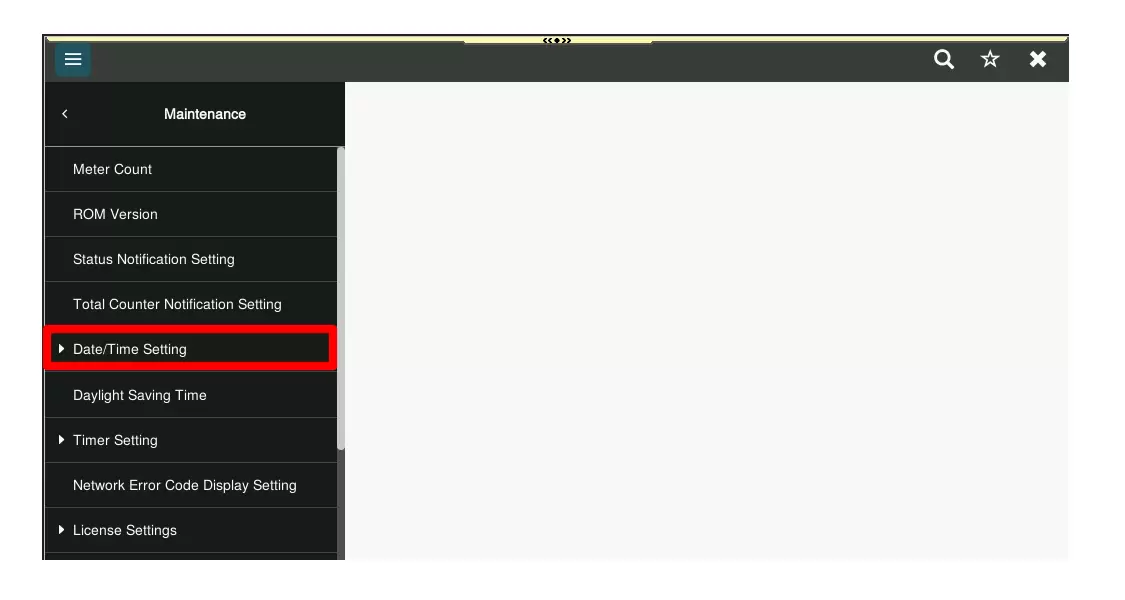
Option 1: Manually set the time
1. Select [Manual Setting]
2. Enter the time and date settings and touch [OK]
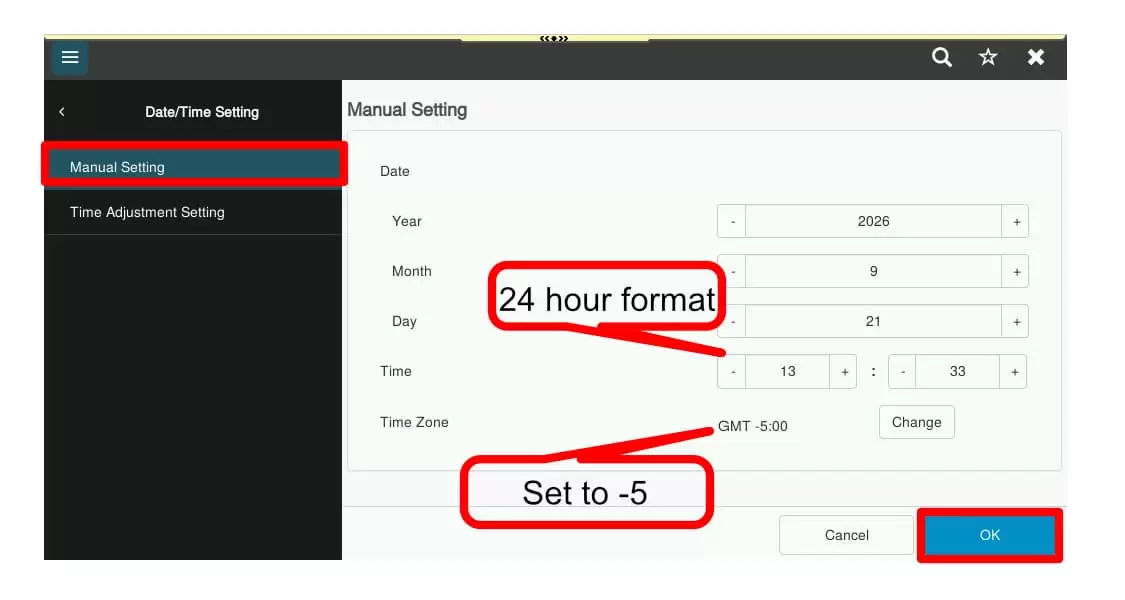
Option 2: Automatically obtain time via NTP server
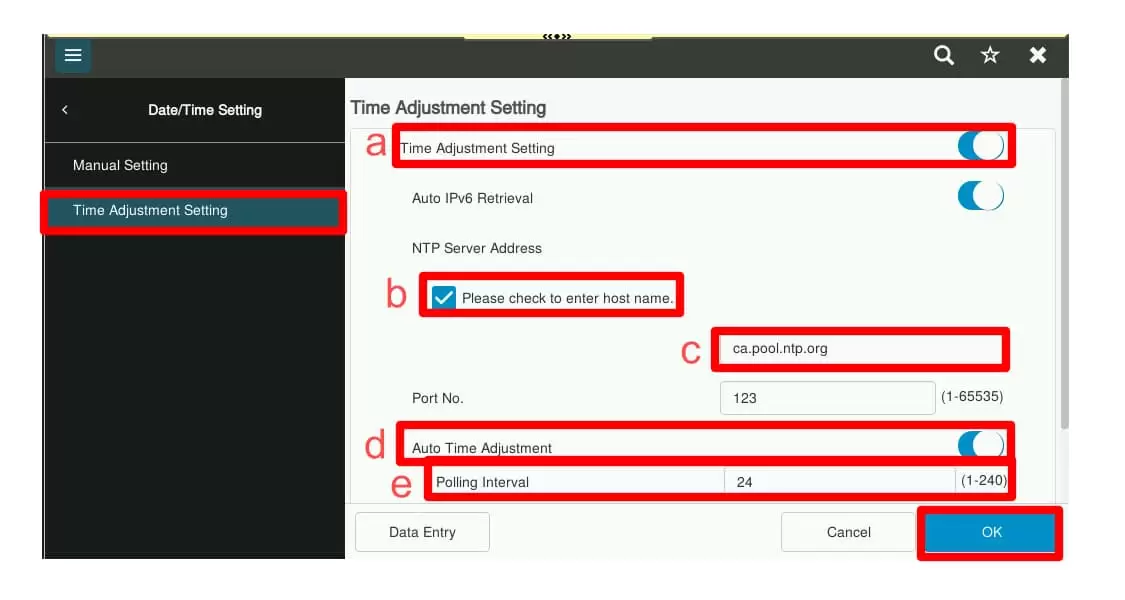
1. Select [Time Adjustment Setting]
2. Perform the following: